
Following these steps will change the notification preference of Art Requests, Team Store, Item Requests and Quick Quote, to be sent to your Game One email.
- Open Sales Deck from your browser.
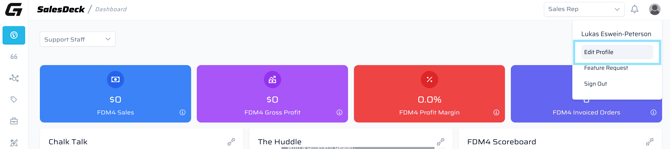
- Click on the
 icon in the upper right corner of Sales Deck.
 - The below drop down will appear. Select Edit Profile
- Select Notification Preferences on top of the next page.

- To have notification sent via email, make sure each functions toggle is blue (see below).
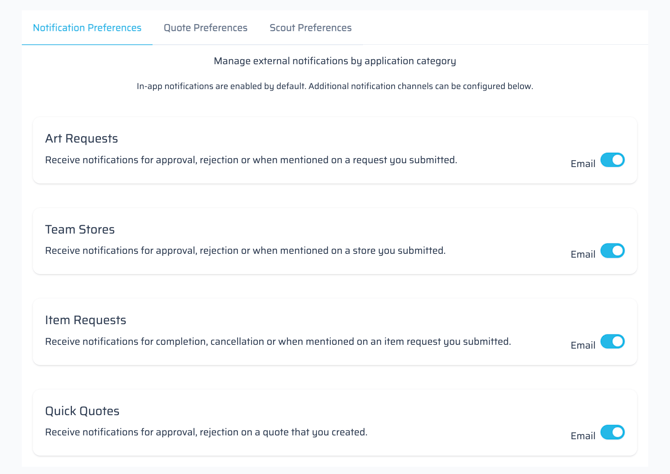
- Notifications from Art Requests, Team Stores, Item Requests, and Quick Quotes will now come to your email.