
- Open your phones web browser (Chrome or Safari).
- Type in the URL salesdeck.game-one.com (click here if on your phone).
- Log in using your Sales Deck email and password.
- If you don't know this, select forgot password or reach out to helpdesk@game-one.com
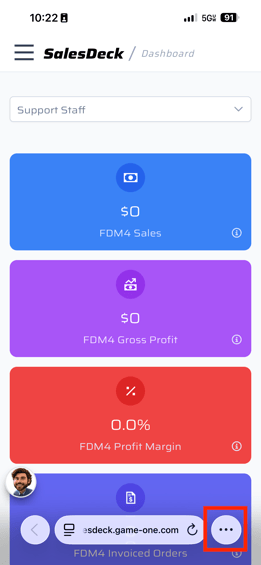
- Once logged in, select the "more" option in your browser.
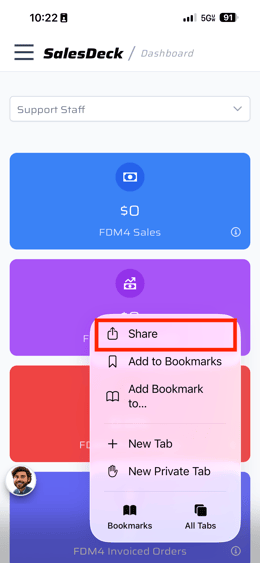
- Select Share
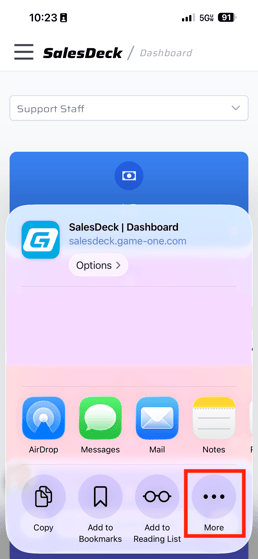
- Select more again.
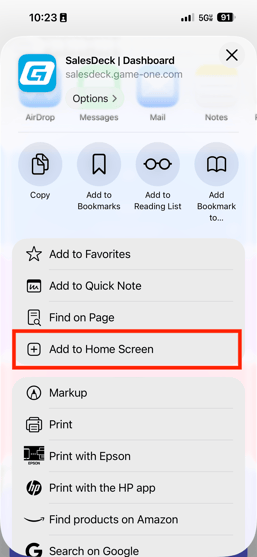
- Select Add to Home Screen
- Click Add.
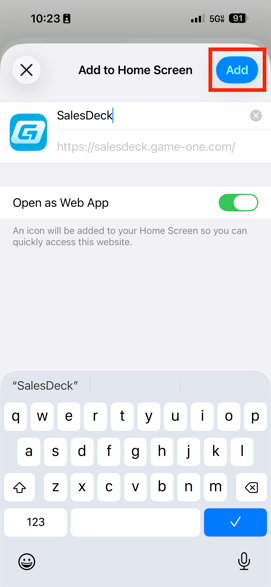
- This will appear on your phones home screen now that can be clicked on and bring you right to Sales Deck .
If you are using Chrome or an Android device, it is similar.
On Android (using Chrome), the more button will be the three dots in the top right and then you would select "Add to Home Screen". If using Chrome on an iPhone, select the share button in the top right (in the URL field). Select More and then select add to home screen.