
-
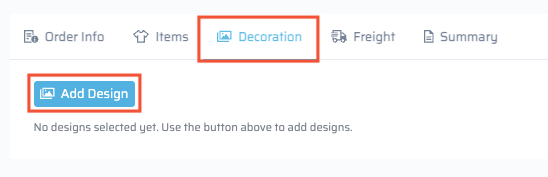
Navigate to the Decoration tab in Quick Quote.
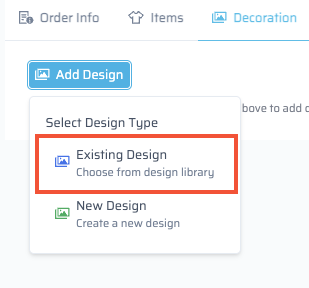
- Select Existing Design
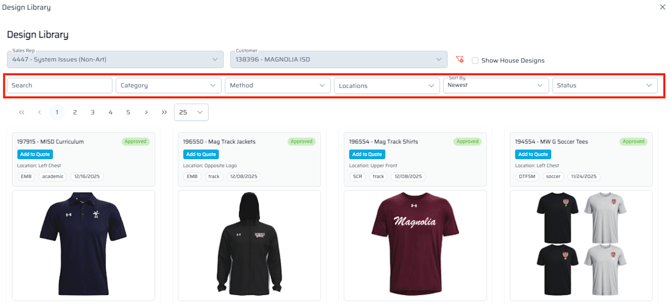
- The ability to search and filter down existing designs is available.
- Notice the information provided on each design;
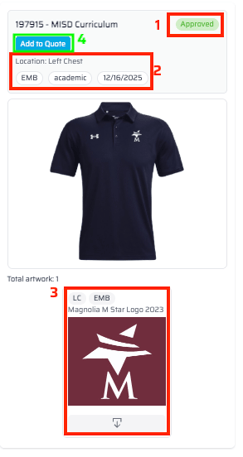
- (1) approved
- (2) locations of art in the design, category, and approval date,
- (3) location, method, and art description. There is also a download button below the image in #3 that will allow the image to be downloaded in various file types.
- (4) add's to the quote being drafted.
- Notice the information provided on each design;
- After Add to Quote is selected the below will show on the bottom of the screen.
- Once the design is added, the user has the option to (1) Copy design, (2) Bulk Apply the design, or (3) remove the design from the quote being drafted.
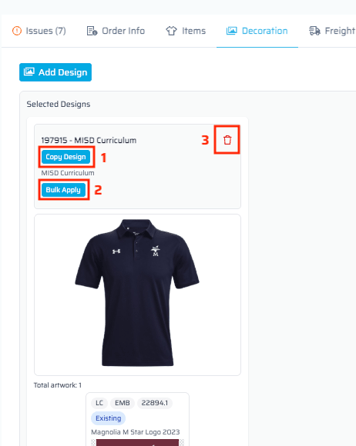
- Copy Design (1) will allow the user to copy the design to add other art to the design (other locations).
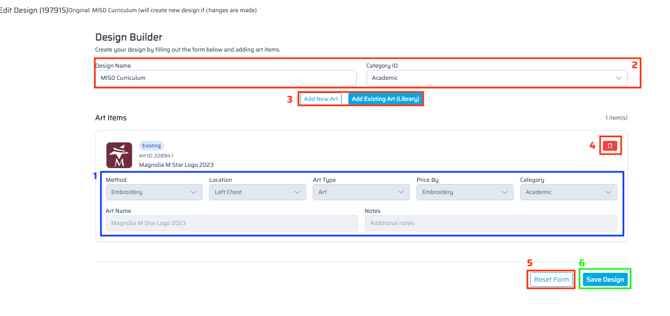
- Decoration Fields (1) are all locked, this is not versioning the art. This pulls the design from and existing design for the user to create a new design and ADD more art/locations to the design.
- Design Name & Category (2) are open fields that can be adjusted to the appropriate data.
- Add New Art & Add Existing Art (Library) (3) will allow for the user to add new art or add existing from our library to the design.
- Trash can (4) will remove the the art line that was copied in step 5.
- Reset Form (5) will reset this screen to have no art on it.
- Save Design (6) will save the new design created. This will go through art and need to be approved by the customer via confirmation sent from FDM4.
- Bulk Apply (2) will pull up the following window for multiple items on the quote to have it applied to.
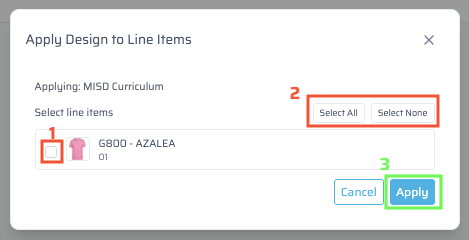
- Toggle (1) allows for multiple lines to be selected for the design to be bulk applied to.
- Select All & Select None (2) allows for the user to quickly select all items or deselect all items.
- Apply (3) will save these changes to the Quick Quote.
- Trash Can (3) will delete or remove this design from the Quick Quote.
- Copy Design (1) will allow the user to copy the design to add other art to the design (other locations).
- Once saved, go back to the Item tab. The design will show on the item in top right corner of the item details.

Remember the Design is the entire garment/mockup, Art is the logo, text or image in each location if the garment is being decorated on multiple locations (Left Chest and Across Shoulders would be one design but two arts).