
With Customer Approval
Without Customer Approval through Quick Quote
With Customer's Approval:
Quick Quote allows for Sales Reps to send the quote via email directly through they system, much like FDM4. You will need to submit the quote after the customer approves it still.
-
Draft a Quick Quote and send to customer for their approval or rejection.
-
Customer approves the Quick Quote through the link provided to them.
-
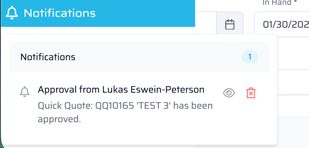
Notification of approval is received by Sales Rep via Sales Deck or Email.
- Navigate to the Quick Quote dashboard. This will show what orders are ready to submit. To easily filter the dashboard to orders that are ready, select "Ready to Submit" in the Quotes Overview section. The submit status will say ready.
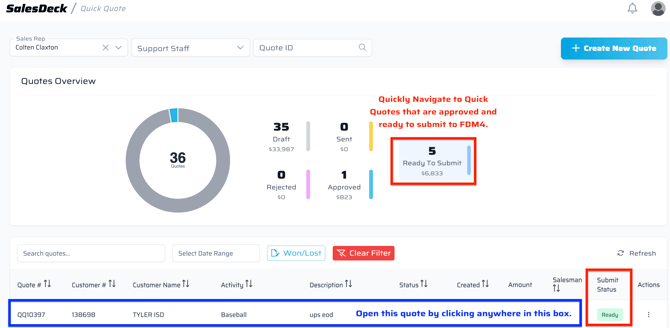
- Select the quote by clicking on that line in the Dashboard, it will open the quote. If there are errors on the quote since it was saved, like dates, the below notification will appear at the top of the Quick Quote.

- Many times the In Hand, Planned and Cancel dates will need to be updated if any of those dates have passed.
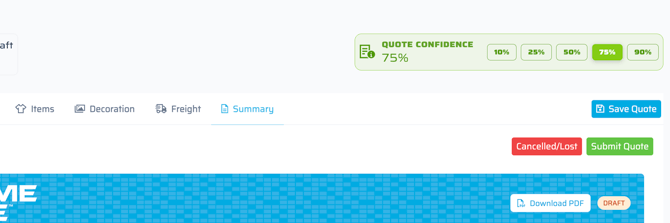
- After any changes are made to the approved quote, navigate to the Summary tab and select the green submit quote button. .
- The below pop-up will appear, asking if a confirmation would like to be sent and provides fields for CC and BCC. The "To" field will auto-populate the contact's email address of the Address number selected.
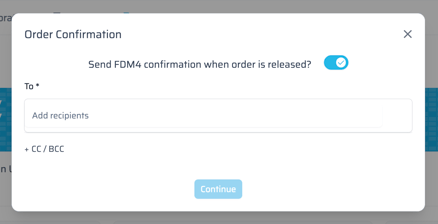
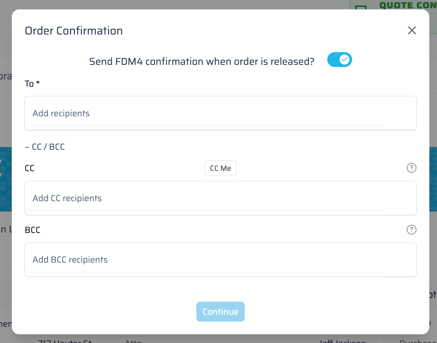
- The toggle for a confirmation to be sent can also be turned off, to not send an FDM4 order confirmation.
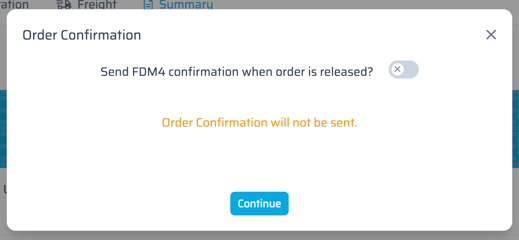
- Once "Continue" is selected on the above email screen, it will load and show confetti. Indicating this was successfully submitted. If an error is received, please enter an help desk ticket by email helpdesk@game-one.com.
Without Customer Approval through Quick Quote
If no approval from a customer is needed, or they may not need to see a physical copy, the ability to submit quote without approving it in the Quick Quote system, is available.
- Navigate to the Summary tab of the Quote and select the green Submit Quote in the upper right corner.
- The below pop-up will appear, asking if a confirmation would like to be sent and provides fields for CC and BCC. The "To" field will auto-populate the contact's email address of the Address number selected.
- The toggle for a confirmation to be sent can also be turned off, to not send an FDM4 order confirmation.
- Once "Continue" is selected on the above email screen, it will load and show confetti. This indicates this quote was successfully submitted to FDM4. If an error is received, please enter an help desk ticket by email helpdesk@game-one.com.