
The Game One Item Request process now lives in SalesDeck. Users can access it via the left navigation menu Product Maintenance > Item Request or within Quick Quote. In this article we will walk through both paths.
FDM4 Item Request (in SalesDeck)
-
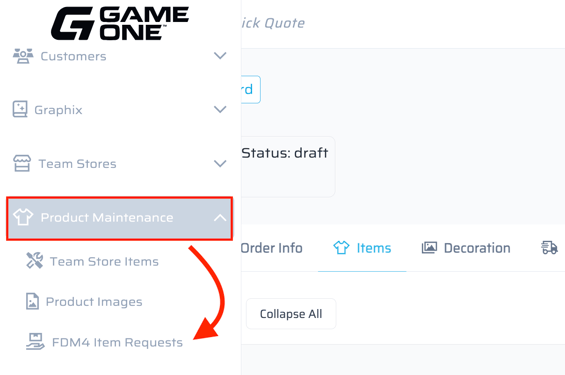
Navigate to Product Maintenance > FDM4 Item Request
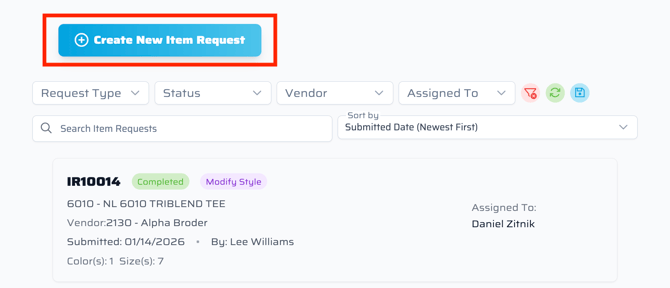
- Click Create New Item Request
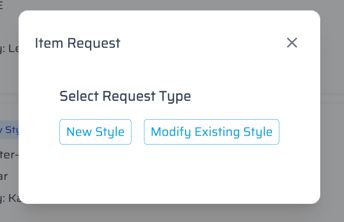
- Select from the two available options:
- New Style - use to add a brand new style not in the system
- Modify Existing Style - use to request modifications to an existing style (ex: add a color, update a description, add a missing size, update cost.)
- Fill out the Item Details, including Vendor, Product Type, Style Code, etc. For sizes, select from the quick-add size groups. Items will be verified by the team before adding to ensure proper setup.
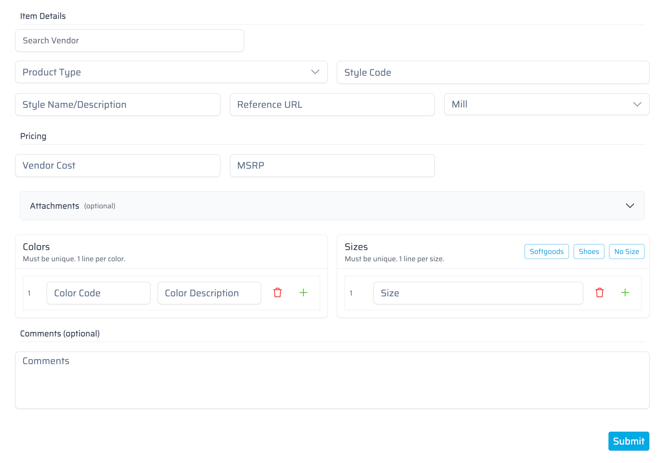
- Submit your request.
- Notifications will be sent when an item request has been completed. You can come back to the FDM4 Item Request page to see your requests and check status.
FDM4 Item Request (in Quick Quote)
-
In Quick Quote, go to Items > Add Product > Item Request
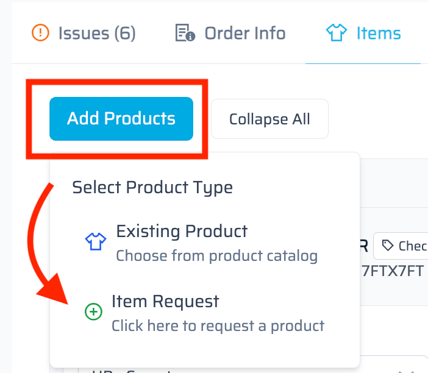
- Follow the steps above to Add or Modify a style
- Add New Style - Item will appear as a placeholder on your Quick Quote and once the request is complete, it must be replaced in order to submit the quote to FDM4.
- Modify Existing Style - Item will not be added to your quote
- A notification will be sent when your item request is complete, or you can use the Product Maintenence > FDM4 Item Request page to check status.